
EasyDoc features
Appointments & OPD Queue
Book appointments for later or check patients straight into today's OPD queue — by time slot and doctor.
How it works in EasyDoc
The front desk works from one form and one queue.
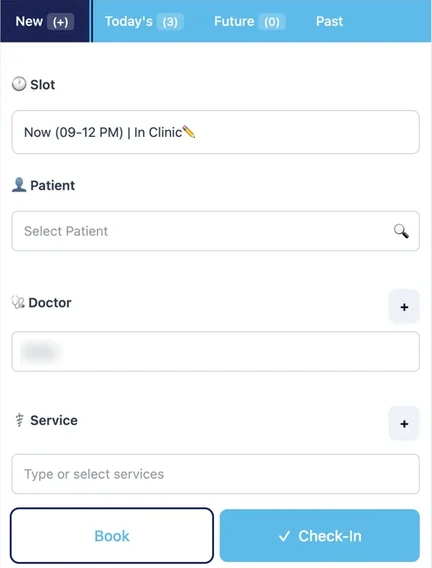
The Queue screen is where a clinic day runs in EasyDoc. On the left is a single booking form: choose the time slot, find the patient, pick the doctor and the services for the visit.
From that form you either Book the visit for a later date or Check-In a patient who is already at the clinic. Checked-in patients appear in Today's OPD on the right, numbered in order, so everyone at the desk sees the same list.
What you can do
Book or check in from the same form
Use Book to schedule a later visit, or Check-In to add a walk-in patient to today's queue immediately.
Time slots
Every appointment sits in a time slot — for example 09–12 PM — and the slot is shown on the patient's queue card.
Doctor and services on every visit
Select the consulting doctor and the services for the visit while booking. New doctors and services can be added from the form.
Numbered Today's OPD list
Checked-in patients are listed as 01, 02, 03… with their visit date and slot, so the order of the day is clear.
Filter the queue by doctor
Switch between all patients and a single doctor's list when more than one doctor is consulting.
New, Today's, Future and Past
Separate tabs keep new bookings, today's visits, upcoming appointments and past appointments apart.
Completed visits
A Completed tab sits next to Today's OPD, keeping finished visits out of the live queue.